
@Voice: Text to Speech Reader
Hyperionics TechnologyBooks & Reference
4.38.84K Reviews
- Version
- 40.3.9
- Installs
- 10.00M
- Age Rating
- Teen
Screenshots

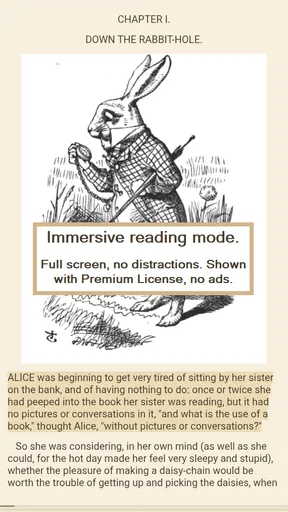

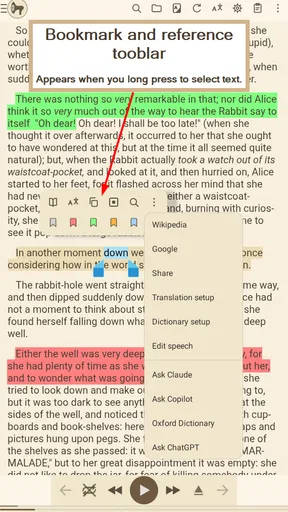
Our Review of @Voice: Text to Speech Reader
 Analysis by Appyee
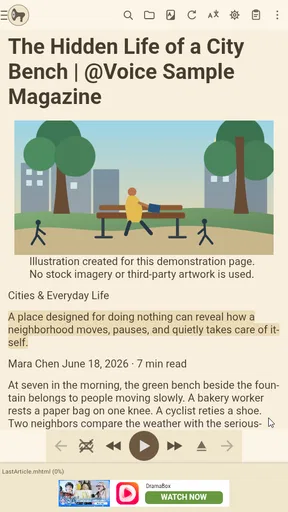
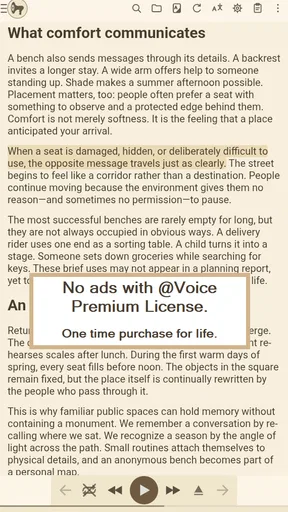
I use reading apps for a very practical reason: I want to keep learning when my eyes are busy. That might mean listening to an article while cooking, reviewing a PDF during a commute, or giving my eyes a break late at night. @Voice: Text to Speech Reader is built around that simple idea, but it goes further than a basic “read this page aloud” button. It is an Android app from Hyperionics Technology that turns PDFs, eBooks, and web content into spoken audio, with translation and multilingual listening included in its core purpose.
My overall impression is that it feels more like a flexible reading workstation than a polished audiobook player. That distinction matters. If you want a carefully produced narration with chapter artwork and a seamless library, this is not the obvious choice. If you already have documents, web pages, or electronic books and want control over how they are spoken, it becomes much more interesting. It is free, carries a Teen content rating, and has reached over ten million installs, so it is clearly not an obscure experiment. Still, its real value depends on whether you are willing to spend a little time adjusting the reading workflow.
What makes the reading experience useful
The app belongs in the Books & Reference category, although I think that label understates its practical range. I would describe it as a bridge between a document reader, a text-to-speech tool, and a lightweight language assistant. Instead of requiring you to find a special audio edition, it works with text you already have. That makes it useful for study notes, long-form web reading, reference material, recipes, manuals, and personal documents that would otherwise remain tied to a screen.
In everyday use, the biggest advantage is continuity. I can start with a web article, move to a PDF, and keep listening without treating each item as a completely separate project. The app is especially helpful when the content is valuable but visually tiring. It also gives people with reading difficulties another way to approach written material, although the final experience depends heavily on the selected voice and on how cleanly the source document exposes its text.
The store summary describes text-to-speech for PDFs, eBooks, and web content, along with translation and listening in many languages. That sounds broad, but the important point is how those functions interact. A reader can use the app not only to consume a finished book, but also to turn information encountered during the day into something listenable. That is a different workflow from buying an audiobook and pressing play.
I found the app most convincing when the source was text-heavy and logically arranged. Articles, ordinary digital books, and documents with selectable text are natural fits. Scanned pages, complicated columns, charts, footnotes, and documents with unusual formatting can be less comfortable because spoken output follows the text the app can interpret, not necessarily the visual order a human reader would choose.
A realistic daily workflow
Imagine saving a long article before leaving home. Instead of reading it immediately, you open it in @Voice, check the beginning, choose a suitable voice, and listen while preparing breakfast. Later, you pause it and return to the same material when you have time to look at a table or reread a difficult paragraph. This is where the app feels more useful than a standard browser reader: the content becomes part of a listening routine rather than something that must be consumed in one sitting.
For a student, a sensible approach is to use it for revision rather than for every page of a textbook. I would listen to definitions, summaries, and my own notes, then return to the original document for diagrams and equations. That trade-off is important. Speech is excellent for repetition and review, but it cannot replace visual inspection when the meaning depends on layout, notation, or a graphic.
For language learners, the translation and multilingual capabilities can be valuable, but I would treat them as support rather than as an unquestionable authority. Listening to translated text can help with general understanding and pronunciation exposure. It can also smooth over nuance, names, idioms, or technical terms. I would keep the original beside the translated version whenever accuracy matters.
Controls that reward patient setup
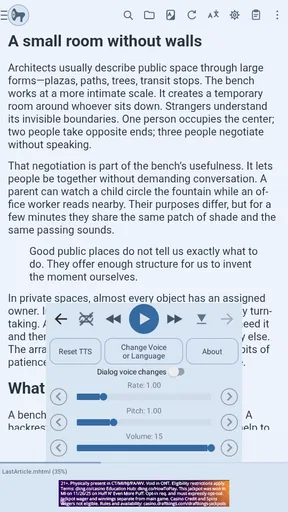
The strongest part of this app is not a flashy presentation; it is the number of decisions it lets the reader make. Text-to-speech becomes much more usable when you can adjust the reading behavior to the material and to your own attention span. I recommend spending time with the voice, speed, and navigation controls before starting a long document. A setting that feels comfortable for a short article may become tiring after an hour.
One useful habit is to test the first few paragraphs before committing to the whole file. This quickly reveals whether headings are repeated, punctuation is being interpreted sensibly, or the document contains text in an awkward order. It also prevents a common mistake: assuming that a poor listening result is caused by the voice when the real problem is the source formatting.
Another practical tip is to divide large reading tasks into purposeful sessions. Rather than treating a long PDF as one uninterrupted stream, I would use natural sections and pause after each one. That makes it easier to remember where a key idea appeared and reduces the frustration of searching through spoken content later. The app is capable of making long material accessible, but it does not automatically turn dense writing into an organized course.
Where it differs from ordinary alternatives
A phone’s built-in accessibility reader is usually quicker for a single screen or a short passage. It may also feel more integrated with the operating system. A browser’s own read-aloud function can be the better choice when you only need one web page and do not want to import or organize anything. Dedicated audiobook apps, meanwhile, win when the desired title already has a professional narration.
@Voice makes more sense when your reading material is scattered across formats. Its advantage is not that it narrates better than a human performer; it is that it gives ordinary documents a listening path. That makes it particularly suitable for people who collect articles, reference PDFs, and electronic books from different places. The compromise is that setup and source quality matter more than they do in a purpose-built audiobook service.
I would also avoid comparing it directly with a full eBook reader. A conventional reader is usually better for typography, page design, highlighting, and visual navigation. This app is better when the question is, “How can I hear this material?” The difference sounds small, but it determines whether the app feels focused or inconvenient.
Trust, controls, and moments that deserve care
I treat privacy and control as part of the reading workflow, not as an afterthought: a routine that works well for public articles may need more care with personal files or translated text. Before settling into a repeatable setup, I check what each on-screen choice actually does and keep sensitive material out of workflows I have not assessed. That same deliberate approach helps me decide which settings are worth making habitual.
What I look for before handing over reading material
Because this app can be used with personal documents, I pay attention to trust differently than I would with a simple timer or calculator. A PDF might contain work notes, study records, medical information, or private correspondence. I do not assume that an app’s ability to process text tells me anything about how that text is handled beyond the choices and permissions I can actually inspect.
My cautious approach is straightforward: I begin with a non-sensitive document, review the app’s visible prompts and controls, and notice whether an action clearly explains what will happen next. If translation or an online service is involved, I treat that as a separate data-sensitive moment from merely reading a local file. I would not send confidential material for translation without first understanding the destination and the available settings.
This is also why I prefer to keep the app’s role narrow. If I only need a web article spoken aloud, I do not automatically load an entire folder of private documents. If I need to test a voice, I use a harmless sample first. These are small habits, but they give me more control over what the app encounters.
Visible choices matter more than assumptions
The app’s usefulness comes from giving the reader choices over content, language, and listening behavior. That user agency is a genuine strength, but it also means I have to make those choices deliberately. Translation, importing, voice selection, and document handling should not be treated as one indistinguishable process. I check each step, especially when the material is personal or professionally confidential.
I also recommend checking Android’s permission manager and the app’s current settings after installation or a major update. The current version is 40.3.9, and the minimum operating system requirement is Android 8.0. I would not interpret a version number as proof of a particular privacy practice; I would use it as a reminder to review the controls that are actually visible on my device.
There is no need to create an account simply because an app is useful, and I prefer not to volunteer personal information when a feature does not require it. If a workflow presents an account prompt, I consider whether that account adds something I need, such as synchronization or another control, before continuing. The right decision depends on the exact screen and the current Android behavior, so I judge the request at the moment it appears rather than relying on a general assumption.
Limitations I noticed in the listening workflow
The app’s flexibility can make it feel less immediate than a minimalist reader. New users may encounter more settings and choices than expected, particularly if they are accustomed to pressing one button in a browser. That is not necessarily poor design; it reflects the fact that PDFs, eBooks, and web pages all present different problems. Still, someone looking for instant simplicity may find the learning curve unnecessary.
Speech quality is another practical limitation. The app can only read what the selected text-to-speech engine and the source structure allow. A well-formatted article may sound natural enough for routine listening, while a document full of references, abbreviations, page headers, or tables may require patience. I would never rely on automatic speech alone to proofread a legally important document or verify a technical translation.
Multilingual use also comes with exceptions. A language may be supported in the broader workflow while the best voice depends on what is installed on the phone. Pronunciation can vary, and translated passages may need visual checking. For casual learning or general comprehension, that is acceptable. For publishing, professional correspondence, or sensitive instructions, I would use a dedicated human or specialist translation process instead.
Who should use it, and who should skip it
I recommend this app to people who already have substantial reading material and want to listen without buying a separate audio edition. It is a strong fit for commuters, students reviewing notes, readers with eye fatigue, multilingual users, and anyone who regularly encounters useful information in PDF or web form. It is also worth trying if your reading habit is irregular: the free price makes experimentation easy, and you can decide whether the workflow fits before investing in another service.
I would point audiobook fans elsewhere if their priority is expressive narration, polished chapter navigation, and a library designed specifically for listening. I would also suggest a simpler built-in reader to someone who only needs occasional read-aloud support and dislikes adjusting settings. People handling highly confidential documents should be especially careful with import and translation choices, and should not treat convenience as a reason to ignore Android’s permission and account controls.
The app is rated for Teen users, which is a useful reminder that it is a general reading tool rather than a children’s learning environment with tightly curated material. Parents should judge the documents and web content being opened, not just the app’s category. The same flexibility that helps an adult listen to research can also expose a younger user to material that requires supervision.
My final judgment after weighing convenience against control
Hyperionics Technology has made a practical tool for a problem that many readers recognize: having more text than time or visual energy. I like that the app is not limited to one content source and that translation and multilingual listening broaden its usefulness. Its large community footprint, including an average rating of 4.3 from around one hundred thirty-seven thousand ratings, suggests that the basic idea works for many people, though popularity should not replace personal testing.
My recommendation is cautious but positive. Install it if you want to turn your own documents and web reading into audio, and begin with ordinary material so you can learn the controls without risking sensitive content. Test the opening pages, check how the structure is spoken, and separate local reading from any translation workflow that may involve additional data choices. Those steps make a noticeable difference.
The best reason to choose @Voice is control over how existing text becomes listenable, not the promise of a perfect audiobook experience. When the source is clean and your expectations are realistic, it can become a dependable part of a daily reading routine. When you need flawless narration, precise document interpretation, or effortless simplicity, another tool may serve you better. For my own use, that balance makes it a worthwhile free option, provided I stay attentive to the material I open and the choices I make along the way.
Verdict
Strengths of @Voice: Text to Speech Reader
- Reads webpages, PDFs, emails, and documents aloud.
- Supports many languages through installed text-to-speech voices.
- Offers playback controls, speed adjustment, and sentence navigation.
- Can continue reading while you use other apps or lock the screen.
- Useful for accessibility, multitasking, and reducing eye strain.
Limitations of @Voice: Text to Speech Reader
- Voice quality depends heavily on the selected device TTS engine.
- Some advanced features and ad removal may require a purchase.
- Complex webpages may include menus or unwanted text during reading.
- Initial setup can be confusing for users unfamiliar with TTS settings.
- Heavy reading sessions may consume noticeable battery and mobile data.
Other Releases by Hyperionics Technology
View All
@Voice Premium License
Productivity4.3
Similar Picks in This Category
View All
Google Play Books & Audiobooks
Google LLC4.7

네이버 - NAVER
NAVER Corp.3.5

Wattpad - Read & Write Stories
Wattpad.com3.7

King James Bible - Verse+Audio
Ozion4.8

Bible Offline-KJV Holy Bible
Bíblia Offline4.9

Amazon Kindle: Reading App
Amazon Mobile LLC4.8
Frequently Asked Questions
What is @Voice: Text to Speech Reader used for?
@Voice: Text to Speech Reader is designed to read digital content aloud, including web pages, emails, documents, PDFs, ebooks, and copied text. After testing its main functions, I found it especially useful for multitasking, accessibility, language practice, and reducing screen fatigue. You can send content to the app from other applications or open supported files directly inside the reader.
Which documents and content formats does @Voice support?
The app can handle many common types of content, such as web articles, plain text, HTML pages, PDFs, ebooks, and text shared from other applications. Compatibility may vary depending on the document’s structure, formatting, and whether the PDF contains selectable text. Scanned documents or heavily designed files may require additional preparation before the text can be read accurately.
Can I customize the voice, speed, and reading experience?
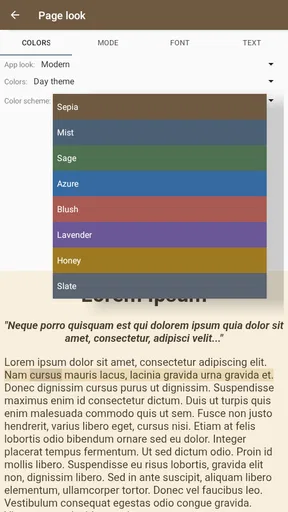
Yes. @Voice offers controls that let you adjust speech speed and choose from the text-to-speech voices installed on your device. You can also manage reading-related preferences, such as highlighting, text display, and playback behavior. The available voices depend largely on your Android text-to-speech engine and installed language packs, so voice quality can differ between devices.
Does @Voice work offline, and does it require an internet connection?
The app can read downloaded or locally stored content without a continuous internet connection, provided that the required text-to-speech voice and language data are installed on your device. Internet access may still be needed when loading online articles, downloading voice data, or using certain web-based features. For reliable offline reading, prepare your documents and voice packs in advance.
Is @Voice: Text to Speech Reader free, and are there advertisements or extra features?
@Voice can generally be downloaded and used without an upfront purchase, but the exact availability of advertisements, optional upgrades, and premium features may depend on the current version and store listing. Before downloading, check the Google Play page for the latest pricing and permissions. The free experience is functional, although some users may prefer paid options for a cleaner or more advanced reading setup.
